How to Set Up Google Analytics on Your Framer Website?
 by Mathew Smith•
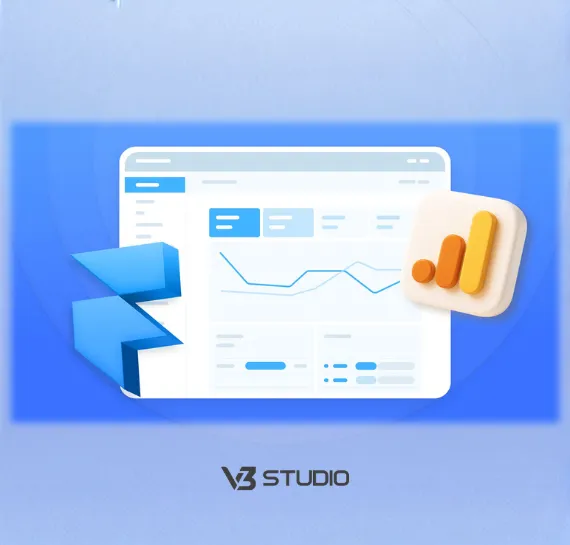
Google Analytics on Framer means connecting a GA4 property to your Framer site so you can see real visitor traffic, page views, and conversions inside Google's own reporting tools. Most people assume this requires pasting a block of tracking code into the site, and while that option exists, Framer actually has a native field built specifically for this that skips the code entirely for standard tracking.
This guide covers the complete setup process, creating your GA4 property and finding the Measurement ID, connecting it inside Framer, what tracks automatically once it is live, how to verify the connection actually worked, and exactly what to check when Google Analytics shows no data at all.
What Is the Fastest Way to Connect Google Analytics to a Framer Site?
The fastest path is Framer's native Google Analytics field. Paste your GA4 Measurement ID into Site Settings, publish the site, and Framer handles the underlying tracking script for you, no Custom Code and no Google Tag Manager required for standard page view and engagement tracking.
That native field only covers basic tracking though, anything beyond that, custom events tied to a specific button, or a full Google Tag Manager container, still needs the Custom Code section covered further down. The rest of this guide walks through the full setup, from creating the GA4 property itself to fixing it when the data does not show up.
How Do You Create a GA4 Property and Find Your Measurement ID?
Before Framer has anything to connect to, you need an actual GA4 property set up inside Google Analytics itself, along with a web data stream tied to your domain.
Creating the GA4 Property and Data Stream
Inside Google Analytics, open Admin and click Create, then Property, and give it a name along with your time zone and currency. After confirming your industry and business size, click Create and accept the terms of service. Once the property exists, go to Data Streams under Data Collection and Modification, click Add Stream, choose Web, then enter your site URL and a stream name before clicking Create Stream.
Leave Enhanced Measurement toggled on during this step, it is what quietly captures scrolls, outbound clicks, and file downloads without any extra configuration, and turning it off means rebuilding that tracking manually later.
Locating Your Measurement ID in the Stream Details
Once the stream is created, click into it and look under Stream Details for an ID starting with G, this is your Measurement ID, and it is the only piece of information Framer actually needs from Google Analytics. Copy it exactly as shown, a single mistyped character sends your data to nowhere and leaves you checking an empty property while traffic quietly goes untracked somewhere else.
How Do You Connect Google Analytics to Your Framer Site?
With the Measurement ID copied, the actual connection inside Framer takes under a minute for most sites.
Adding the Measurement ID in Framer's Site Settings
Open your project, go to Site Settings, and look for the Google Analytics field under the General tab. Paste the Measurement ID directly into that field and save. This setting only takes effect once you publish or republish the site. It does not track anything while you are only working inside the editor or previewing an unpublished draft, so do not expect Realtime data to appear until the live domain is actually updated.
Using Custom Code or Google Tag Manager Instead
If you need Google Tag Manager instead of a direct GA4 connection, Framer has a separate Custom Code section under Site Settings where you place the container snippet, one piece at the start of the head and another at the start of the body, set to run on every page. Framer's own documentation recommends using the dedicated Google Analytics field for GA4 alone and reserving Custom Code for Tag Manager or other tools specifically.
One honest caveat worth knowing before you start, sources disagree on whether the native Measurement ID field is available on every Framer plan or requires a paid site plan, and Framer's own plan comparison pages do not spell this out either way, so it is worth confirming against your current plan before assuming it is included. It is also worth avoiding one common mistake directly pasting a manual gtag script into Custom Code while the native field is also filled in fires the same tag twice, which quietly inflates your session and pageview counts without any obvious warning.
What Does Google Analytics Track Automatically Once Connected?
Once the connection is live, GA4's Enhanced Measurement setting starts capturing a surprising amount of visitor behavior without any manual configuration on your part.
What Enhanced Measurement Captures by Default
Page views fire automatically on every load, and a handful of other interactions get tracked the moment Enhanced Measurement is switched on, scrolling past 90 percent of a page, clicking a link that leaves your domain, using an on site search field, engaging with an embedded video, and downloading a linked file. Form starts, and form submissions are captured the same way, which matters directly for any Framer site built around a booking or contact form as its main conversion point.
Why GA4 Calls Conversions Key Events
Every one of those automatic behaviors is technically an event in GA4's own terminology, and Google has moved away from the word conversion in the interface itself, calling a tracked event you care about a key event instead. Marking an event as a key event does not require any extra tracking code, it is a toggle inside the GA4 Admin panel applied to an event that is already firing, which is why getting Enhanced Measurement right at setup matters more than most people realize going in.
Event Type | What Triggers It | Why It Matters |
Page view | Every page load or route change | Baseline traffic and popular page data |
Scroll | Reaching roughly 90 percent scroll depth | Signals genuine content engagement |
Outbound click | Clicking a link leaving your domain | Tracks referrals to booking tools or socials |
File download | Clicking a link to a common file type | Useful for tracking brochure or PDF downloads |
Form submission | A form is successfully submitted | Often the actual conversion for a Framer site |
How Do You Verify Google Analytics Is Actually Working?
Never assume a connection worked just because you saved a field, verifying it directly takes two minutes and saves hours of confusion later.
Checking the Realtime Report
Open your GA4 property and click Realtime, then visit your own live site in another tab, click around, and watch for your own session to appear within roughly thirty seconds to a couple of minutes. This is the single fastest way to confirm the Measurement ID is correctly connected, well before any data would ever reach the standard reports.
Using DebugView and Tag Assistant
DebugView goes a level deeper than Realtime, showing individual events and parameters as they fire rather than just a visitor count, and it is the better tool once you are troubleshooting a specific event rather than confirming the connection exists at all. Google's Tag Assistant browser extension pairs well with this, install it, point it at your published Framer domain, and it will confirm whether your Google tag is firing correctly directly in the browser without needing to open GA4 at all.
Why Is Google Analytics Not Showing Data on Your Framer Site?
Most of what looks like a broken connection is actually one of a small handful of predictable causes.
Check Realtime Before You Panic
Standard GA4 reports can take twenty four to forty eight hours to fully process new data, so checking the Audience or Traffic report an hour after setup and seeing nothing is completely normal, not a sign anything is broken. Realtime is the only report that should update within minutes, if that one is empty too, the problem is worth investigating further.
How Ad Blockers and Consent Banners Hide Real Traffic
Ad blockers silently drop the network requests Google Analytics relies on, which means a meaningful share of visitors, sometimes the majority on certain audiences, are never counted at all and there is no error message to notice. A cookie consent banner can cause the same silent gap if it blocks the tag from firing until a visitor actively accepts, so a portion of real traffic simply never gets measured. Duplicate tracking is the opposite problem, a manual script running alongside the native Measurement ID field inflates your numbers rather than hiding them, which is worth ruling out if your totals look unusually high.
The Setup Mistakes That Actually Break Tracking
Double check the Measurement ID against the Stream Details page character by character, a single wrong digit routes all your data into a property you are not even looking at. If you are using Custom Code instead of the native field, placement matters, a script that depends on the page having already loaded needs to sit at the end of the head rather than the very start, and anything added at the page level instead of the site level only tracks that one page rather than the whole site. Finally, confirm you actually published after making the change, editor and preview activity does not appear in Google Analytics at all.
What Do Framer Developers Actually Recommend for Analytics Setup?
Beyond Google Analytics itself, real Framer projects tend to layer on a couple of habits worth adopting from the start.
Pairing Analytics With Core Web Vitals
Traffic numbers only tell half the story, a site that is slow enough to hurt its own performance will lose visitors before Google Analytics ever gets the chance to count a meaningful session. Our own guide to optimizing a Framer website for Core Web Vitals covers the rest of that picture directly, and it is worth reading alongside this setup rather than treating analytics and performance as separate concerns.
When to Bring in Framer Development Support
Most standard GA4 tracking needs nothing beyond the native field, but a site relying on custom events tied to specific interactions, or a more advanced Google Tag Manager setup, benefits from the same Framer development work that handles anything past what a settings panel alone can configure. Our own work shows the range of Framer builds this kind of setup actually supports in practice.
Frequently Asked Questions
What Is a GA4 Measurement ID and Where Do You Find It?
A GA4 Measurement ID is a unique code starting with G that identifies your specific data stream, found inside Google Analytics under Admin, then Data Streams, then clicking into your web stream to view its Stream Details. It is the only value Framer needs, so copy it exactly.
How do I set up Google Analytics for my website?
Create a Google Analytics 4 property, add your website as a data stream, copy the Measurement ID, and connect it to your website using its analytics or tracking settings. Then verify the setup through Google Analytics’ real-time reports.
Can you run Google Analytics on any website?
Yes, Google Analytics can be used on most websites, including Framer, WordPress, Shopify, and custom-built sites, as long as you can add the required tracking code or Measurement ID.
Do You Need Custom Code to Add Google Analytics to Framer?
No, Framer has a native Google Analytics field under Site Settings that only requires your Measurement ID, custom code is only necessary for Google Tag Manager or other non Google tracking tools. This native field handles standard page view tracking with no script required.
Why Is Google Analytics Showing No Data on a Framer Site?
The most common causes are checking a standard report before the normal twenty four to forty eight hour processing window, an unpublished change, a wrong Measurement ID, or an ad blocker silently dropping the tracking request entirely. Realtime usually clarifies which cause applies.
Does Google Analytics Track Visitors Before You Publish Your Site?
No, the Google Analytics connection only becomes active once your Framer site is published or republished, activity inside the editor or an unpublished preview link is not tracked at all. Always verify tracking against the live published domain rather than a draft in progress.
What Is the Difference Between Google Analytics and Google Tag Manager on Framer?
Google Analytics tracks visitor behavior directly through the native Measurement ID field, while Google Tag Manager is a separate container added through Custom Code that can manage multiple tracking scripts at once, useful once your needs go beyond standard GA4 tracking.
How Long Does It Take for Google Analytics Data to Appear?
Realtime data appears within roughly thirty seconds to a couple of minutes of a visit, while standard reports like Audience and Traffic acquisition can take twenty four to forty eight hours to fully process. Check Realtime first before assuming anything is broken.
Conclusion
Getting Google Analytics on Framer working correctly comes down to a handful of steps that take longer to explain than to actually do, create the GA4 property, paste the Measurement ID into Framer's native field, publish the site, and confirm it in Realtime before assuming anything is broken. Most of what looks like a failed setup is really just a standard report that has not processed yet, an unpublished change, or an ad blocker doing exactly what it is designed to do. Get the connection right once and the rest of your Framer site's growth decisions finally have real data behind them instead of a guess.
Setting up tracking is only step one. Want a Framer site actually built to convert once the data starts coming in? Get a free site audit from our team, and we will show you what your numbers are really telling you.