What Are Framer Interactions and How Do They Work?
 by Mathew Smith•
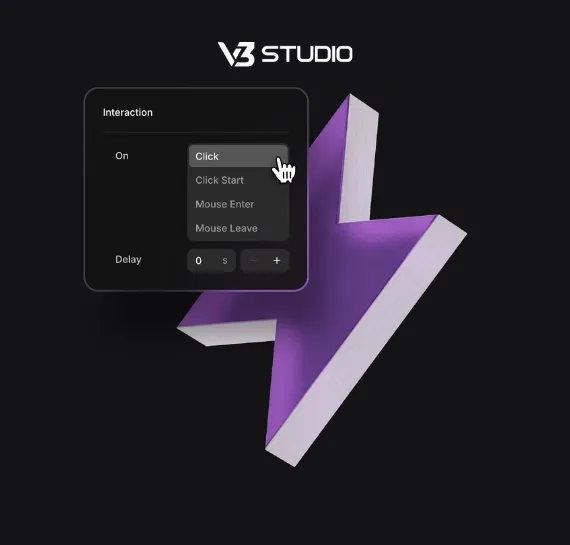
Framer interactions are any change to an element that fires in response to a real user action, a hover, a tap, a drag, or a scroll, rather than motion that just plays automatically on its own. That distinction matters because Framer interactions and Framer animations get used interchangeably in casual conversation, but they are not quite the same thing, an interaction always responds to something the visitor does, while an animation can run entirely on its own timeline with no input required.
This guide covers exactly how Framer interactions work under the hood, hover effects, scroll effects, drag interactions, press and tap states, and the Variants system that ties all of them together, using real examples from projects we have actually built rather than a generic feature list.
How Do Framer Interactions Actually Work?
Every Framer interaction follows the same basic shape, a trigger fires on a target element, and that trigger moves the element into a defined end state rather than leaving the outcome ambiguous. The trigger might be a hover, a tap, a drag, or scrolling a section into view, but the underlying model stays consistent across all four, something happens, and the element responds in a way you configured ahead of time rather than something built live in the moment.
Most Framer interaction effects are configured through Variants, a system that lets you define a default state and one or more alternate states, then connect them with a transition so the change plays smoothly rather than snapping instantly. Once that transition is set on a component, every instance of it inherits the same behavior automatically, which is the real reason interactions in Framer feel consistent across an entire site rather than pieced together element by element.
This is also why interactions are worth planning before a page gets built rather than added afterward as an afterthought. Deciding upfront which elements actually need a trigger, and which trigger fits each one, keeps a site from ending up with hover effects bolted onto things a visitor was never going to click, which reads as noise rather than intentional design.
How Do Framer Hover Effects Work?
Hover is the most common trigger in everyday use, and Framer hover effects are configured directly on an element or component by defining what changes the moment a cursor moves over it, color, scale, position, or opacity are the most frequent targets.
Configuring a Hover State
Setting up a hover effect means defining two states, the default look and the hovered look, then choosing a transition, spring for something with a bit of bounce and energy, or a simple tween for a cleaner, more controlled change. The panel lets you preview the transition directly on canvas, so you can tune timing and easing without publishing the site first to see how it actually feels.
Where Hover Effects Work Best
Buttons and cards are the two places hover effects earn their keep most consistently, a button that shifts color or lifts slightly on hover gives a visitor clear confirmation that the element is actually clickable. Where hover effects add less real value is on elements a visitor was never going to interact with anyway, applying motion there adds visual noise without giving anything back in return.
How Do Framer Scroll Effects Work?
Framer scroll effects trigger the moment an element enters the viewport as a visitor scrolls down the page, playing once rather than continuously.
Scroll Into View as a Trigger
This trigger is what powers a typical reveal animation, a section fades in, slides up, or scales into place the first time it becomes visible, then stays in its final state as the visitor keeps scrolling past it. Configuring it is a matter of choosing the entrance style and setting how far into the viewport the element needs to be before the effect actually fires.
How This Differs From Scroll Transform
Scroll into view is a one time trigger, it fires once and finishes, which is different from Scroll Transform, a separate Framer tool that continuously scrubs an element's position, scale, or opacity against scroll progress the entire time a visitor is scrolling through a section. Our deeper guide to Framer animations covers Scroll Transform and true scroll scrubbing in more depth, this section focuses specifically on the simpler, one time reveal that most sites actually need.
How Do Drag Interactions Work in Framer?
The Drag effect makes an element directly draggable on the canvas, moving with the cursor or a finger on touch rather than staying fixed in place.
Setting Up a Draggable Element
Drag is configured by defining the axis an element can move along, horizontal, vertical, or both, along with optional constraints that stop it from being dragged outside a defined boundary. Momentum and snapping can be layered on top, so an element that gets dragged and released can either stay wherever it was dropped or snap back to a defined position automatically.
Common Drag Use Cases
Image carousels, before and after sliders, and swipeable card stacks are the most common real use cases, anywhere a visitor benefits from physically moving something rather than clicking a fixed button to advance it. Drag adds a genuinely different feel to an interaction, it reads as more hands on than a simple click, which matters on a site trying to feel more tactile than a static brochure page.
How Do Press and Tap Interactions Work in Framer?
Press captures the moment between a tap starting and releasing, distinct from hover since it applies specifically during that brief pressed moment rather than for as long as a cursor happens to be resting over an element.
Configuring a Pressed State
A pressed state usually involves a small, quick change, a slight scale down, a color shift, or both together, timed to feel responsive rather than delayed. Because the pressed state only lasts as long as the actual tap or click, the transition into it needs to be fast, a slow transition here reads as laggy rather than deliberate.
Why Touch Devices Need This
Touch devices have no real hover state at all, a finger either is or is not touching the screen, so a design that relies only on hover for feedback gives mobile visitors no confirmation that anything actually happened. Press states fill that gap directly, giving a phone or tablet visitor the same kind of immediate feedback a hover effect gives a desktop visitor with a mouse.
How Do Variants Tie Framer Interactions Together?
Variants are the system underneath nearly every interaction described above, a component defines its states, default, hovered, pressed, dragged, once, and a transition connects them, and that single configuration is what every instance of the component then inherits automatically. Change the transition once at the component level and every button, card, or element built from it updates in the same way, without needing to touch each instance individually.
That consistency is the real advantage over configuring each element one at a time. A site with dozens of buttons built from one component with Variants stays visually consistent by default, while the same site built from individually styled elements drifts out of sync the moment someone updates one but forgets the rest.
Testing every state a component can actually reach matters just as much as building it in the first place. It is easy to design a hover state that looks right the first time but breaks slightly on a second or third hover, or a pressed state that looks fine on a large button but feels cramped on a smaller instance of the same component at a different breakpoint.
What Do Framer Interactions Look Like in Real Projects?
The three examples below each lean on a different one of the interaction types covered above, showing what they actually look like once they are built into a real client site rather than a demo.
A Real Example: Santoba Tailors' Press to Flip Interaction
Santoba Tailors, a Dubai based tailoring business with three locations, needed a way to browse a large fabric catalog that felt premium rather than like a flat product list. The result is a custom built interaction where a tap or click flips through fabric categories the way turning a page in a physical lookbook would, built past Framer's native panel specifically because that page turning motion needed custom logic beyond a standard press state.
A Real Example: BlaiApp's Scroll Based Feature Reveal
BlaiApp, a crypto trading platform, needed to show off its own product screens without relying on a generic bento grid layout the way most SaaS sites default to. Scroll into view triggers reveal app screenshots and feature callouts section by section as a visitor moves down the page, giving the product tour a sense of pacing rather than dumping every screen on the page at once.
A Real Example: Salta Properties' Restrained Hover Motion
Salta Properties, a Dubai real estate brand, needed motion that made the site feel alive without pulling attention away from the actual property listings, which are the real product being sold. Hover effects here stay deliberately subtle, small, quiet shifts rather than anything dramatic, proof that a restrained interaction can be exactly as intentional a choice as a bold one.
Trigger Type | What It Does | Common Use Case |
Hover | Changes an element the moment a cursor moves over it | Buttons and cards signaling they are clickable |
Scroll | Fires once when an element enters the viewport | Section reveals as a visitor scrolls down the page |
Drag | Lets an element move directly with a cursor or finger | Carousels, sliders, and swipeable card stacks |
Press | Captures the brief moment between tap and release | Immediate feedback on touch devices with no hover state |
Frequently Asked Questions
What Are Framer Interaction Effects?
Framer interaction effects are changes applied to an element that respond to a specific user action, hover, scroll into view, drag, or press, each one configured with a trigger, a target state, and a transition that plays the change smoothly rather than instantly.
Does Framer Support Hover Effects Natively?
Yes, hover is one of Framer's built in trigger types, configured directly on an element or component by defining a default state and a hovered state connected by a spring or tween transition, no custom code required for standard hover behavior on buttons or cards.
How Do Framer Scroll Effects Work?
A scroll effect fires once when an element enters the viewport, playing an entrance animation like a fade or slide, which is different from Scroll Transform, a separate tool that continuously scrubs an element against scroll progress for the entire section.
What Is the Difference Between Framer Interactions and Framer Animations?
An interaction always responds to a specific user action like a hover or a tap, while an animation can play entirely on its own timeline with no input required. Framer's Appear effect on page load is a good example of animation without an interaction trigger involved.
Can You Add Drag Interactions in Framer?
Yes, the Drag effect makes an element directly draggable along a horizontal, vertical, or both axis, with optional boundaries and snapping, commonly used for carousels, before and after sliders, and swipeable card layouts on both desktop and touch devices.
Do Framer Interactions Slow Down a Website?
Not when built natively, Framer's interaction system runs through the same Motion powered engine as its other animation tools, executing off the main thread rather than competing with page JavaScript, though heavily layered custom interactions can still add real weight if built carelessly.
Conclusion
Framer interactions cover more ground than a simple hover state, hover, scroll, drag, and press each respond to a different kind of user action, and Variants are what tie all four of them together into one consistent system rather than scattered one off effects. Santoba Tailors, BlaiApp, and Salta Properties each lean on a different one of these triggers, proof that the right interaction depends entirely on what the specific page actually needs to communicate. Getting this right starts with knowing which trigger fits the moment, not defaulting to the same hover effect on everything.
Want interactions like these built into your own site? Talk to our team about your Framer build, and we will show you what fits your project best.